
Documentation
Cross-Sellings as a List
Version 1.0.0 · updated November 18, 2026

Overview
By default, Shopware shows a product page’s cross-sellings in tabs: your customers only ever see one recommendation list – the other groups stay hidden behind a click that many never make. This app shows all cross-selling groups stacked below each other instead. Each group gets its heading 1 and its own product slider 2, with the next group following right below 3.
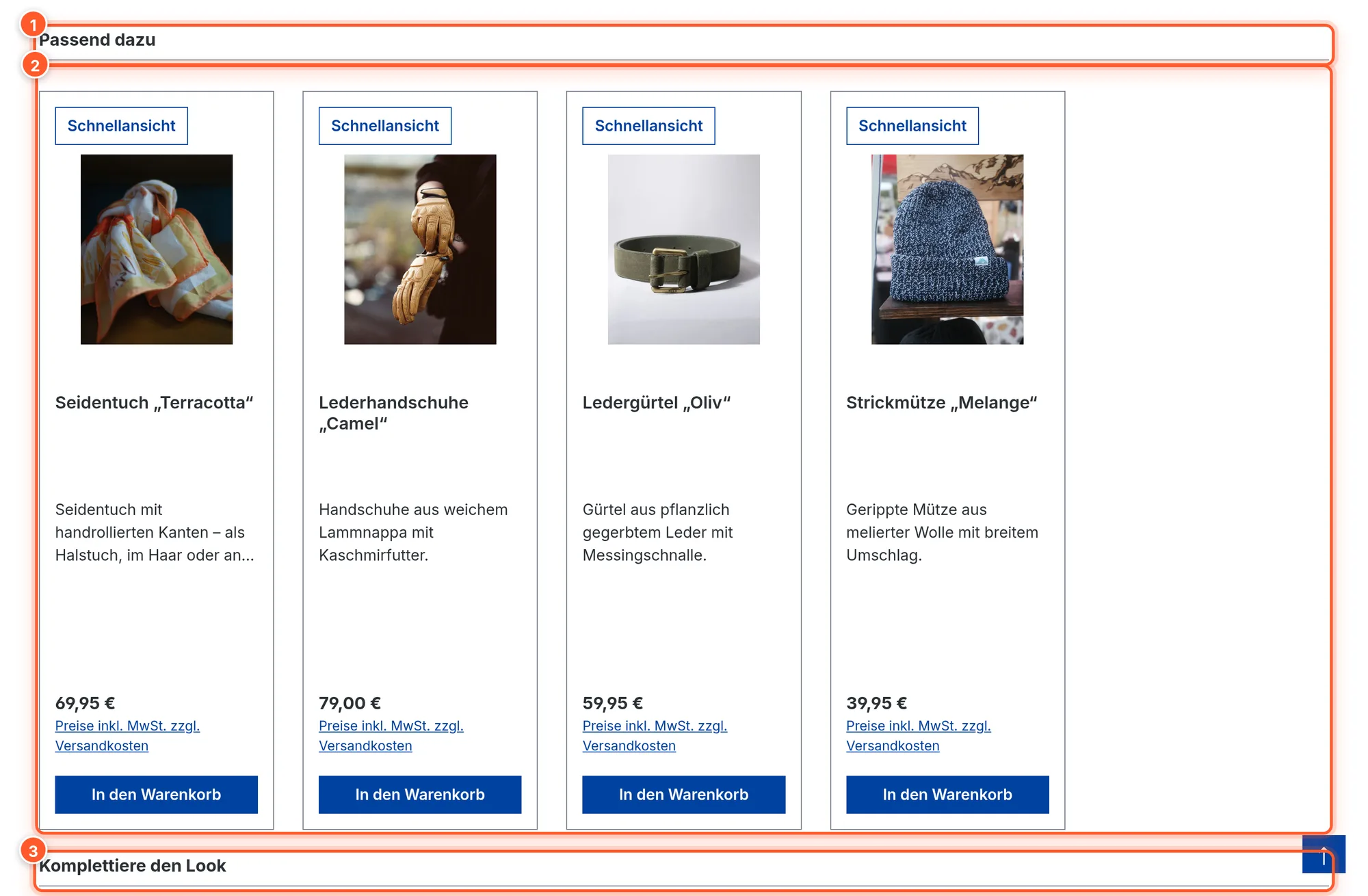
The app is built as a Shopware app, so it runs in self-hosted shops as well as in Shopware Cloud. It works on the classic product detail page and with the Cross selling element in Shopping Experience product layouts (the default in Shopware 6.7). No coding skills or theme changes needed.
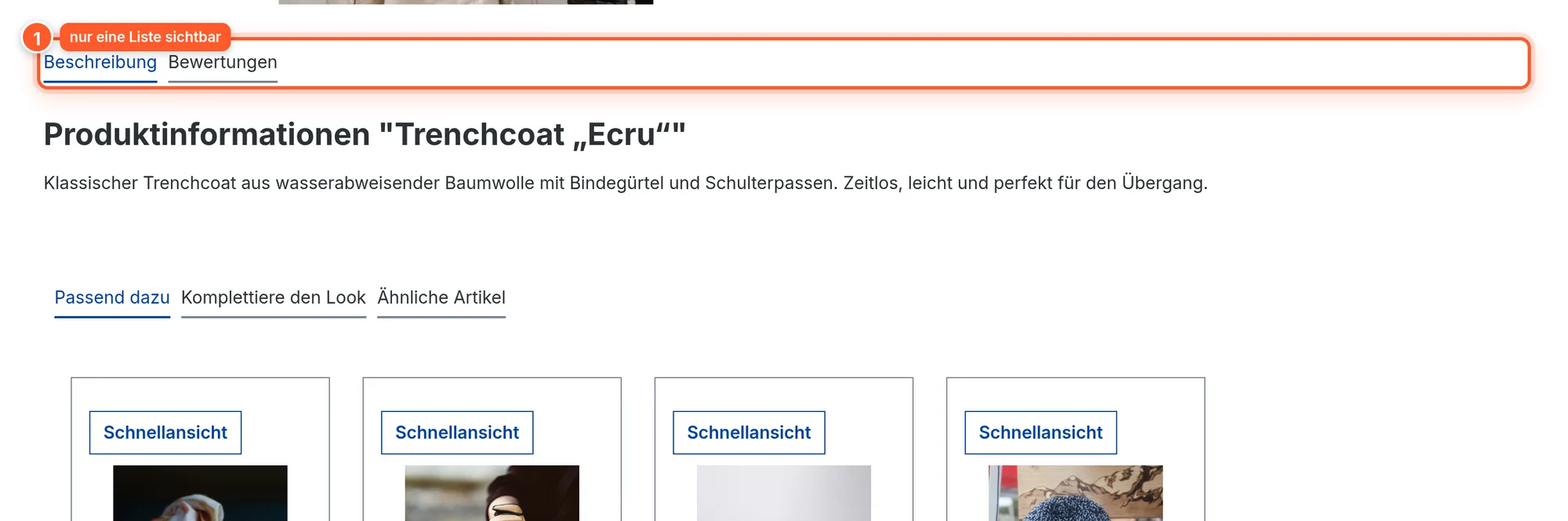
For comparison, the standard Shopware display without the app: only the group in the active tab 1 is visible, “Complete the look” 2 and “Similar items” 3 only appear after a click.
Setup
- Get the app from the Shopware Store (free), then install and activate it under Extensions › My extensions.
- Done – the stacked display is active right away (the Display cross sellings as list setting is on by default).
- Open a product page that has cross-sellings in the storefront. If you still see tabs, clear the cache (Settings › System › Caches & indexes).
The app only changes the display. Which products are recommended is still set in the product on the Cross Selling tab, as usual (product list or dynamic product group, sorting, maximum number).
How the groups are displayed
- Order: The groups appear in the order you set under Position in the product’s cross-selling.
- Heading: The name of the cross-selling group in the current storefront language (translatable via the language switcher in the Administration).
- Empty and inactive groups are skipped automatically – a group without (visible) products or with the Active toggle switched off doesn’t produce an empty heading.
- Slider: Each group is a Shopware product slider with arrow navigation. On the classic product page it uses fixed values (layout “Standard”, minimum width 300 px per product, display mode “Minimal”). With the Shopping Experience element it uses the element’s settings (see Tips).
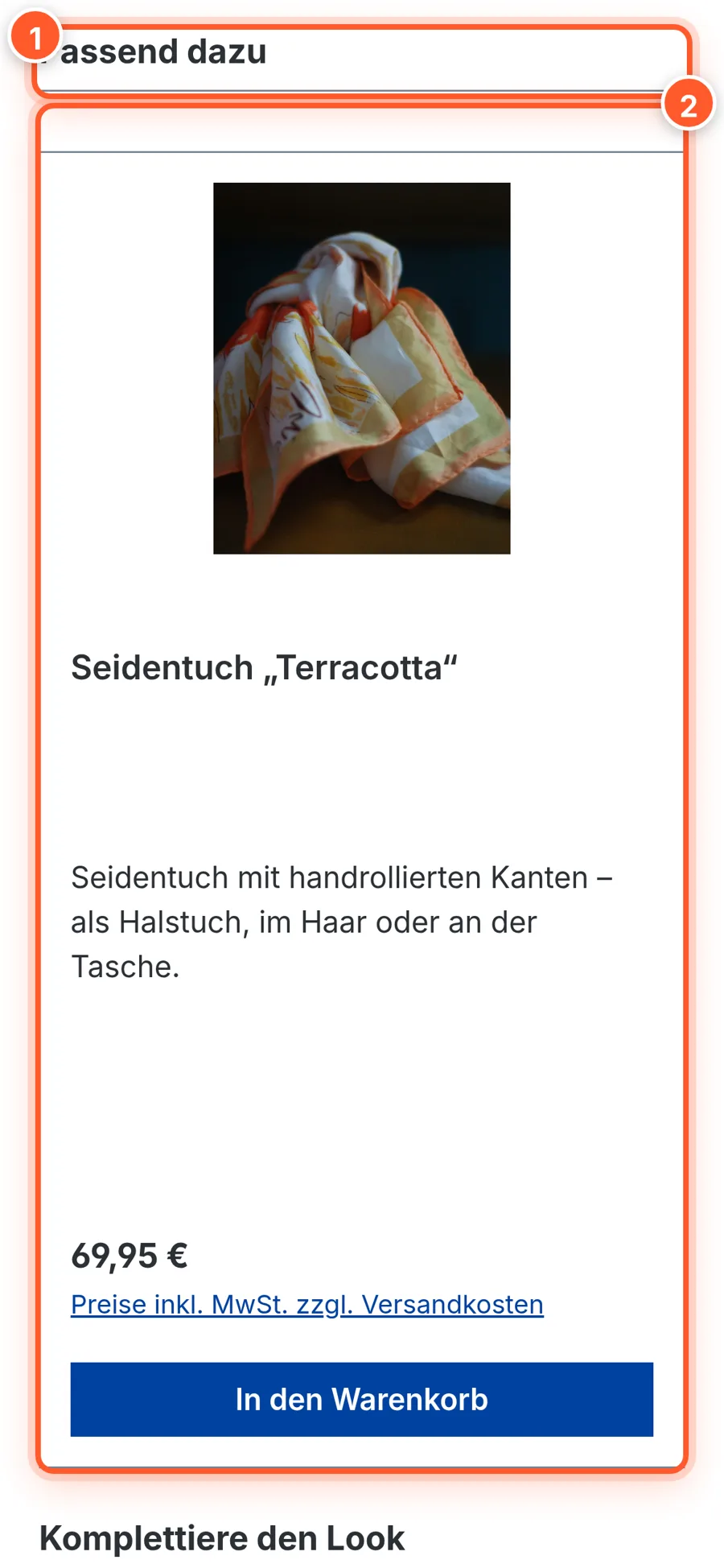
- Mobile: On smartphones the groups are stacked the same way – heading 1, with the swipeable slider 2 below.
Settings
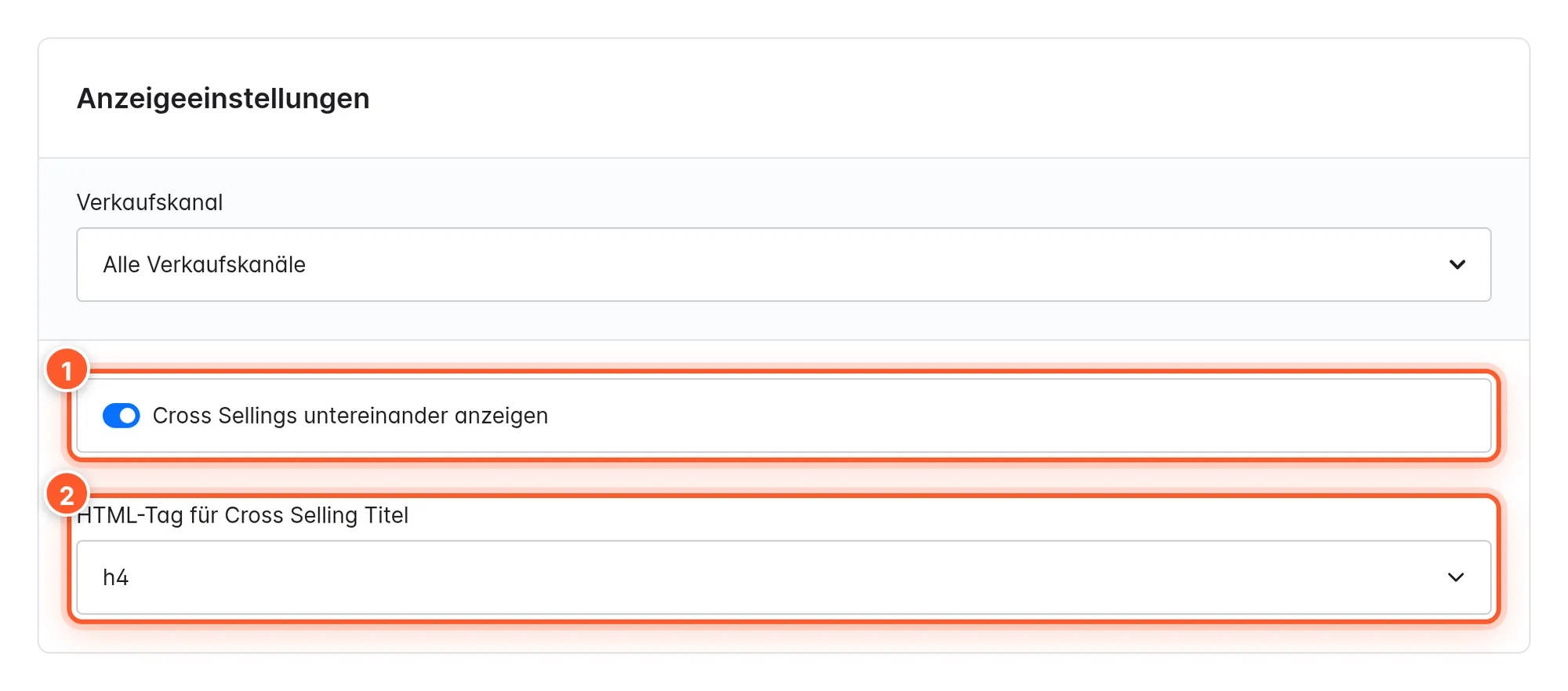
Found under Extensions › My extensions › Display cross sellings as a list › ⋯ › Configure, card Display settings.
| Setting | Effect | Default |
|---|---|---|
| Display cross sellings as list 1 | On: all groups stacked below each other. Off: Shopware’s default tab display – handy for switching the app off temporarily without deactivating it. | on |
| Cross selling titles HTML tag 2 | Which tag is used to output each group’s heading: h1–h6, p or strong. Important for a clean heading hierarchy (SEO, accessibility). | h4 |
With the Sales Channel selector 3 you can set both values differently per sales channel – e.g. stacked in your B2C shop, tabs in your B2B channel.
Tips & hidden features
- Control the slider’s look in a Shopping Experience layout: If your product page uses a Shopping Experience layout, every slider takes over the settings of the Cross selling element – Display mode, Layout (box layout) and Minimum width of the product boxes. Open the product page layout under Content › Shopping Experiences and change the cross-selling element’s settings; they then apply to all groups.
- Heading always looks the same? The tag changes the semantics, not necessarily the look: in the Shopware default theme the titles have the class
card-titleand look the same withh2andh4. For search engines and screen readers, though, the tag is what counts – on a product page withh1as the product name,h2orh3is usually the right choice. - Custom styling: Each group sits in a container with the class
flink-cross-selling-untabbed(Bootstrapcard). Use it in your theme to fine-tune spacing or backgrounds, for example. - Hide a group temporarily: Switch off Active in the product’s cross-selling – the group disappears from the list without you having to delete it.
- Combine it with Quick View: With Quick View, the products in the cross-selling sliders get a quick view button too – customers can check recommendations without leaving the product page.
Frequently asked questions
I still see tabs.
Check that Display cross sellings as list is active for the sales channel in question (a sales channel setting overrides “All Sales Channels”), then clear the cache. If your theme uses a completely custom cross-selling template that doesn’t extend the Shopware blocks, the app can’t take effect – the app supports themes based on the Shopware default theme.
A group is missing.
The app skips groups without products and inactive groups. In the product, check under Cross Selling that the group is Active and that the assigned products are visible and active in the sales channel and – depending on your settings – in stock. With dynamic product groups, the group must return at least one product at the time the page is loaded.
Does the app work in Shopware Cloud?
Yes. It’s built as an app and needs neither plugin code nor an external server.
Is any data transferred?
No. The app only consists of storefront templates; no data is sent to flink or third parties and no cookies are set.