
Documentation
Quick View
Version 2.1.2 · updated November 18, 2026
Overview
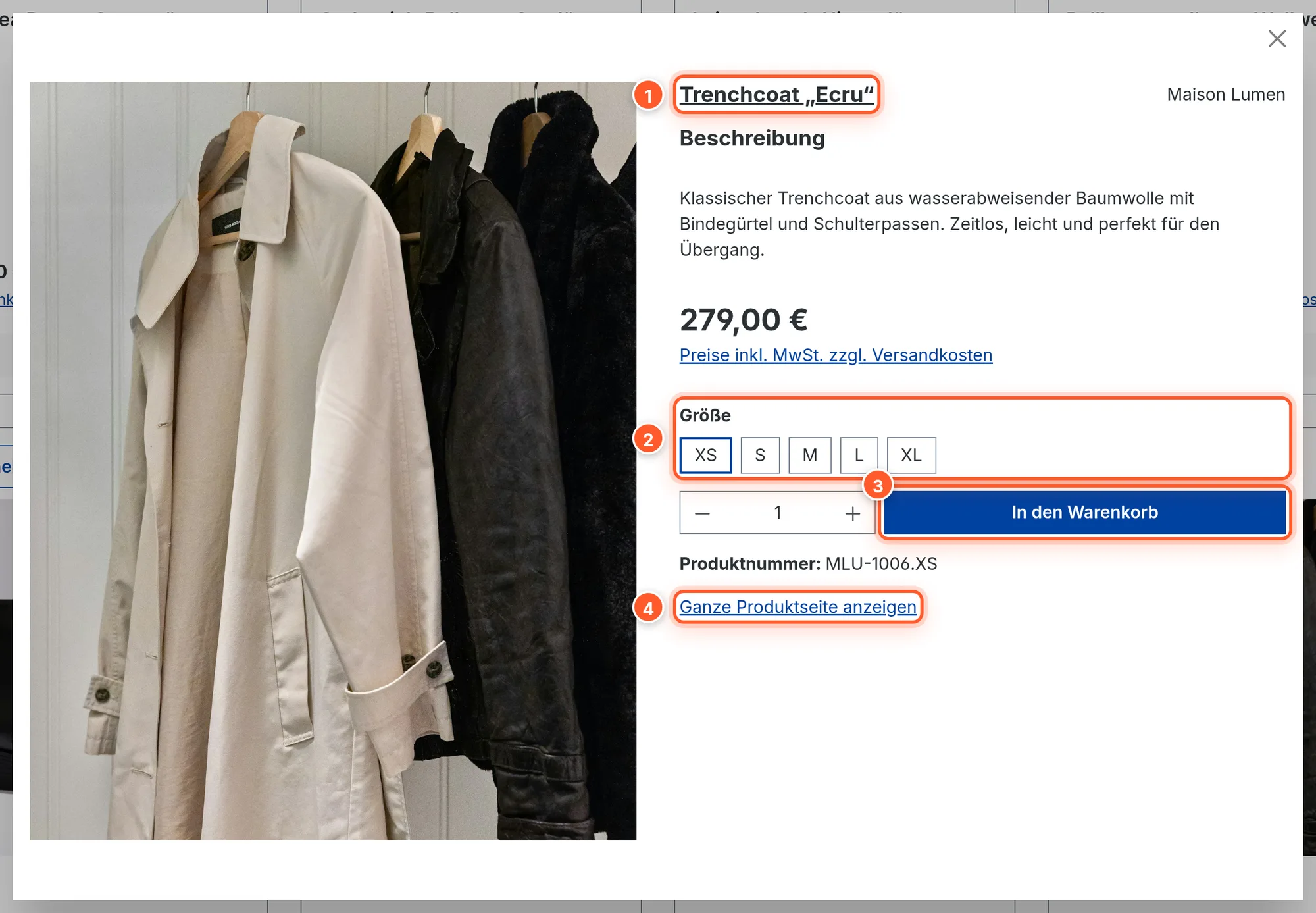
Quick View opens the key product details in a popup, right from the listing. Your customers see the image, description and price, choose the variant and add the product to the cart without leaving the category. Anyone who wants to know more gets to the full product page via a link.
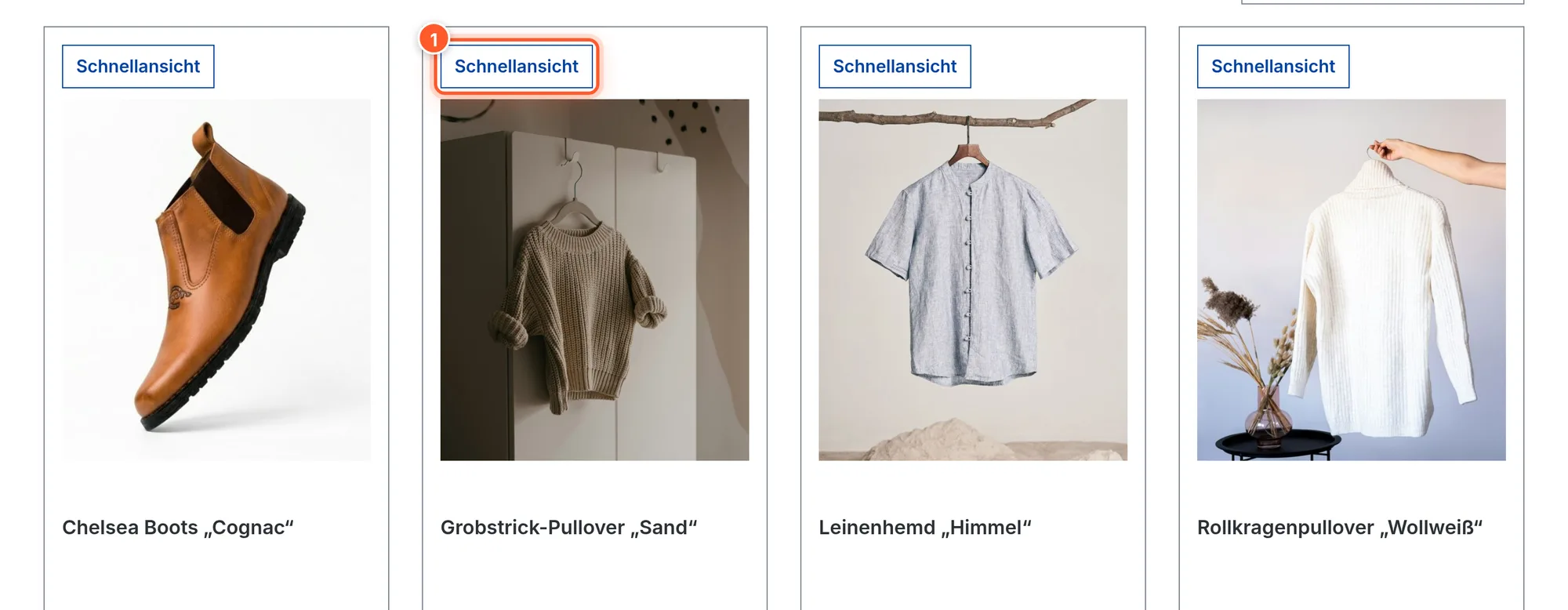
The button to open it appears in every product box in the shop: in category listings, search results and product sliders. The plugin ships with texts for nine languages (German, English, French, Spanish, Portuguese, Italian, Dutch, Polish, Russian).
Setup
- Install and activate the plugin under Extensions › My extensions.
- Clear the cache (Settings › System › Caches & indexes) if your shop doesn’t show the button right away.
- Open a category in the shop: the “Quick View” button now sits above every product image.
That’s all it takes. Everything else – where the button sits, what it looks like and what the popup shows – you set in the plugin configuration: Extensions › My extensions › Quick View › ⋯ › Configure. As with any plugin configuration, you can pick a sales channel at the top and set separate values for each channel.
Customize the button
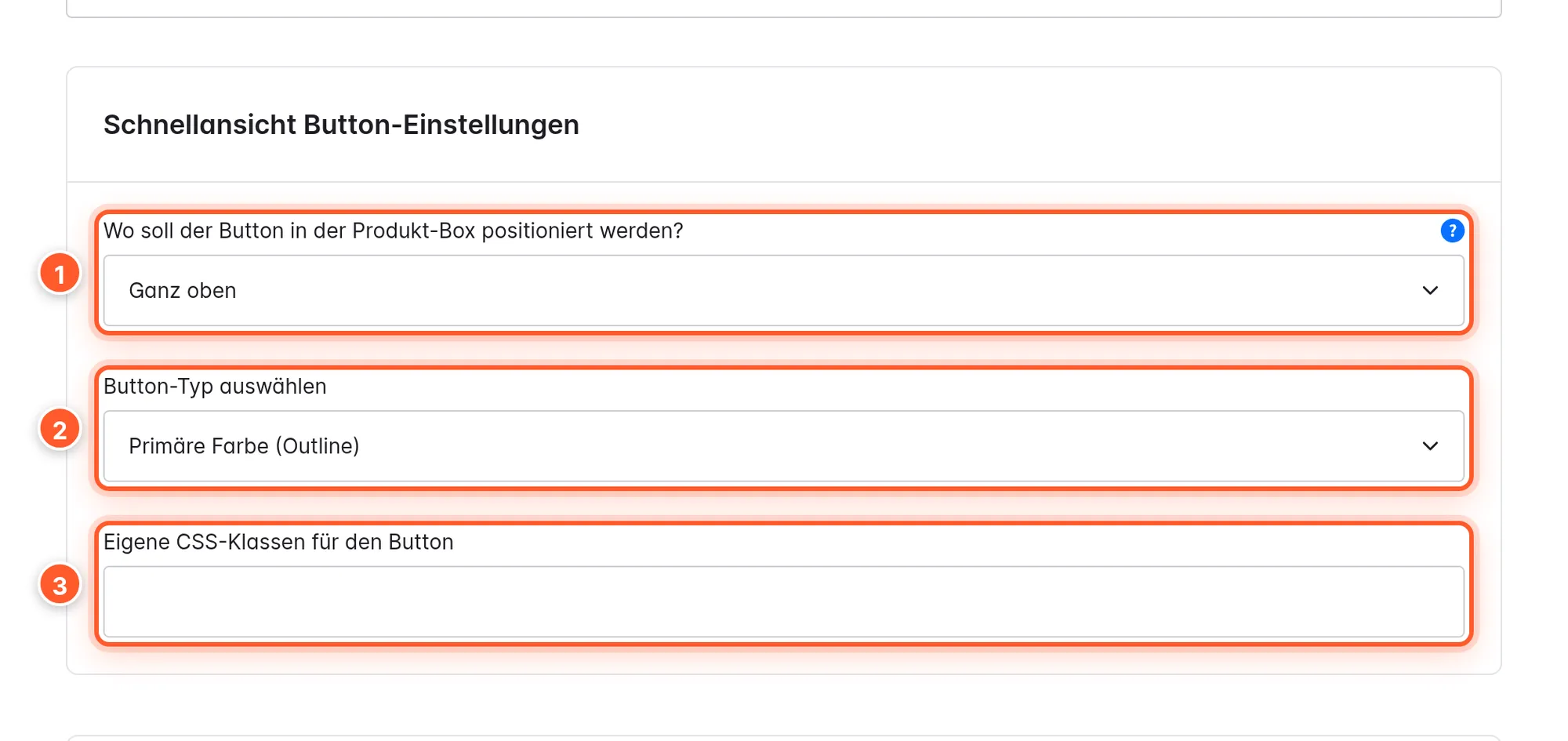
Position 1: The button can sit in eight places in the product box – at the very top, below the product image, the title, the rating, the description, the variant options, the price or at the very bottom. Which one looks good depends on your theme. Below the price, for example, it works like a second buy button:
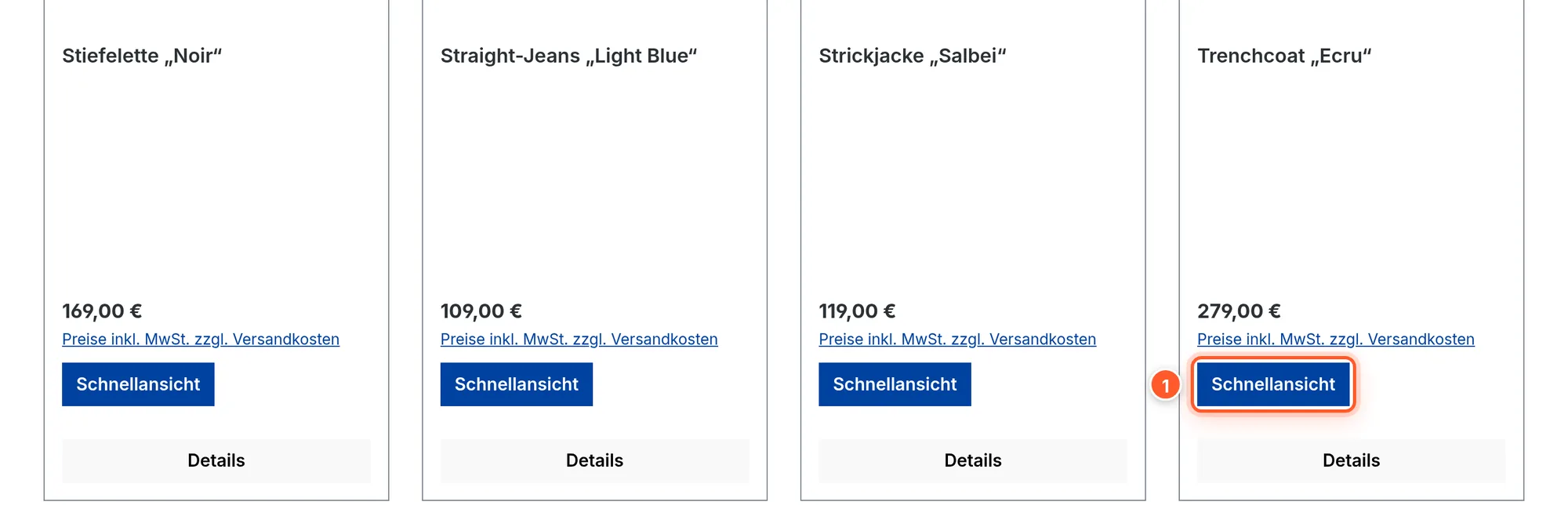
Color 2: The button uses your theme’s button styles. You can choose primary, secondary, success, error, information and warning color, each filled or as outline. With “None (only use own button classes below)” the button gets no color style, and you style it entirely with your own classes.
Custom classes 3: Enter additional CSS classes here, separated by spaces, e.g. btn-sm w-100 for a small full-width button (Bootstrap classes of the Shopware theme).
Text: You change the button text under Settings › Snippets with the key flink.quick_view.quickview, separately for each language.
Customize the popup
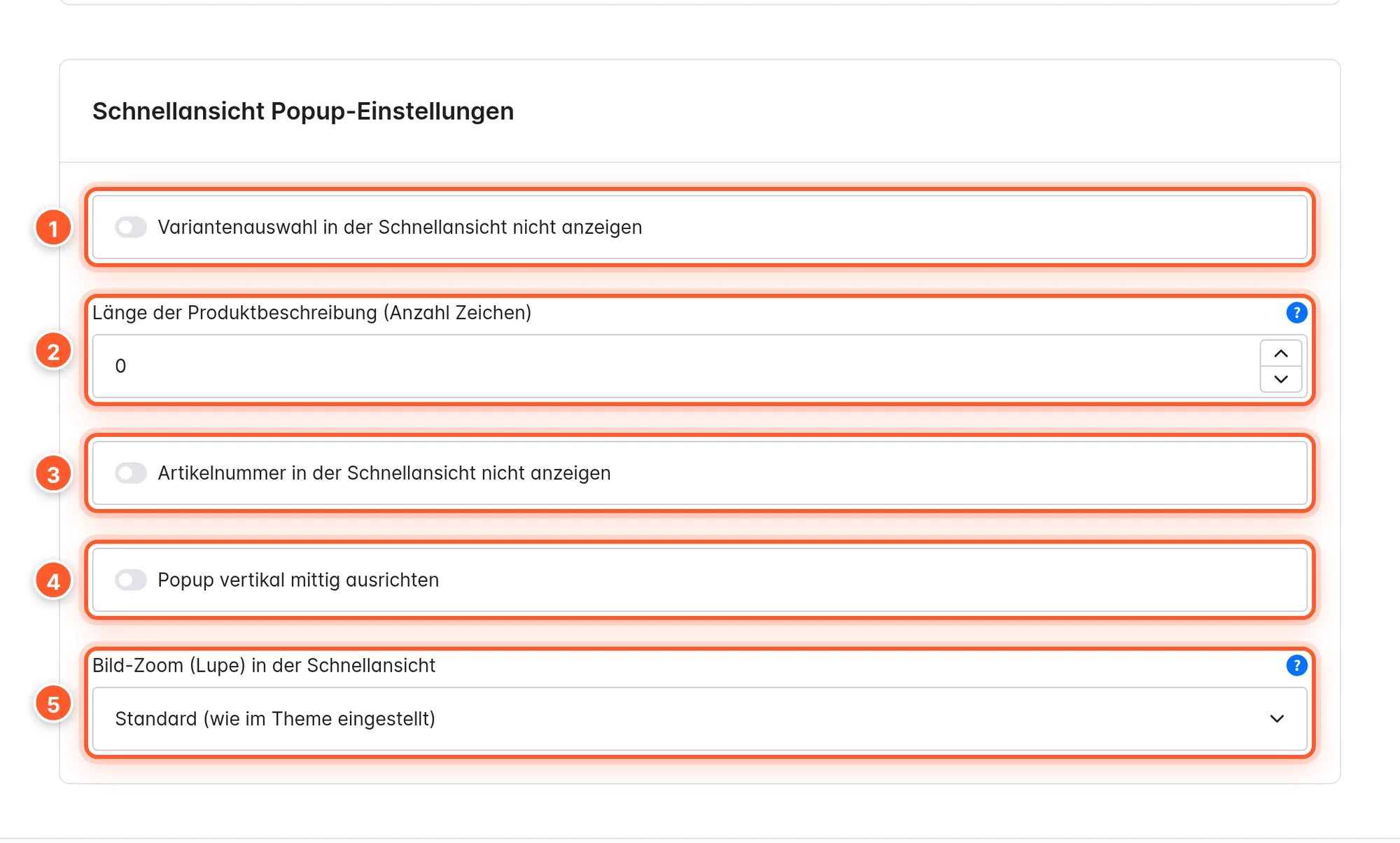
Variants in the popup
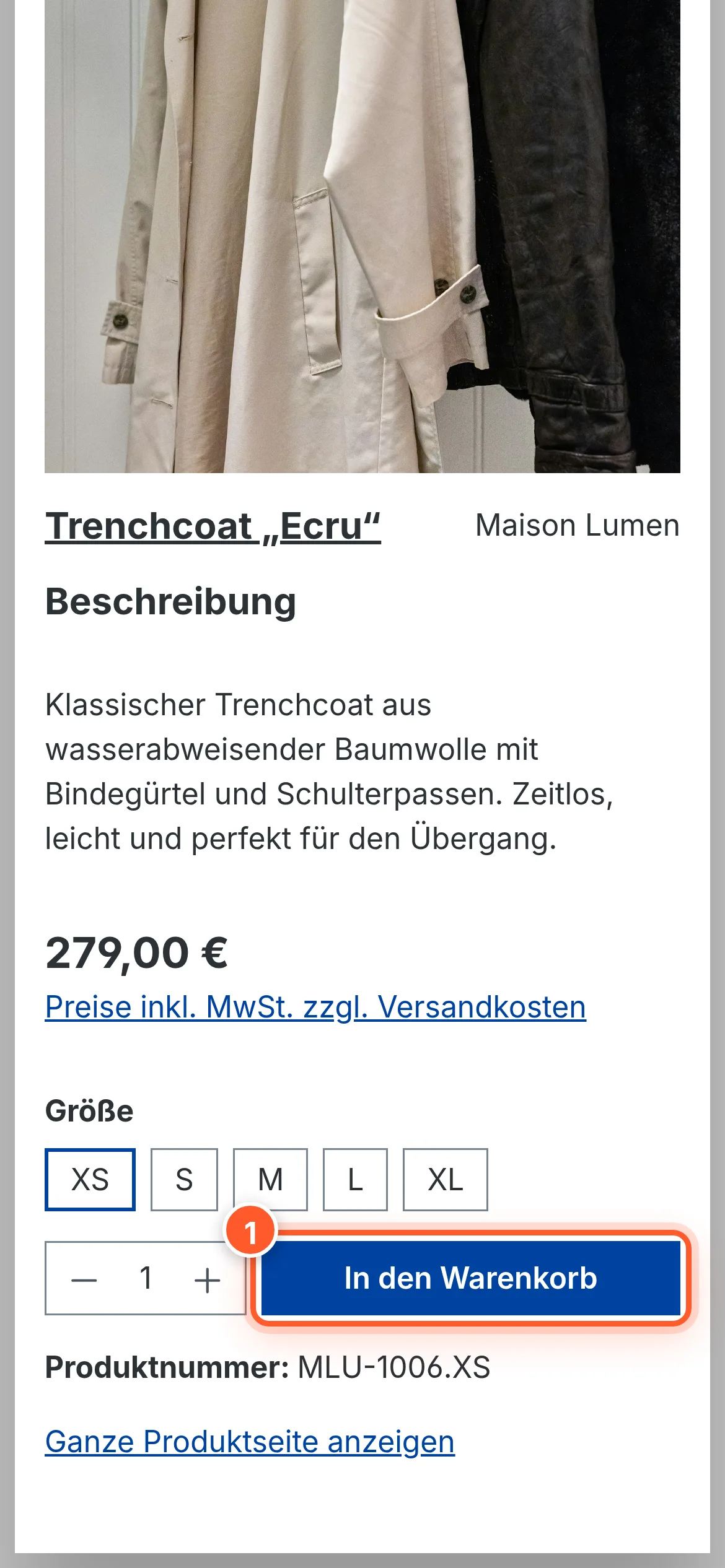
For products with variants, the popup shows the variant selection just like on the product page. If the customer picks a different size or color, the popup loads the matching variant with image, price and product number without closing. After “Add to shopping cart” the popup closes and the cart opens at the side.
If you don’t want to offer the selection in the popup, switch on Hide the variant selection in the quick view modal 1. The customer then adds the variant whose button they clicked in the listing, and goes to the product page via “Show full details” for other variants.
Shorten the description
By default, the full product description with all formatting is shown in the popup. For long texts, enter a number of characters under Length of product description in popup (number of characters) 2. The description is then cut at the last full word before that limit and ends with “…”.
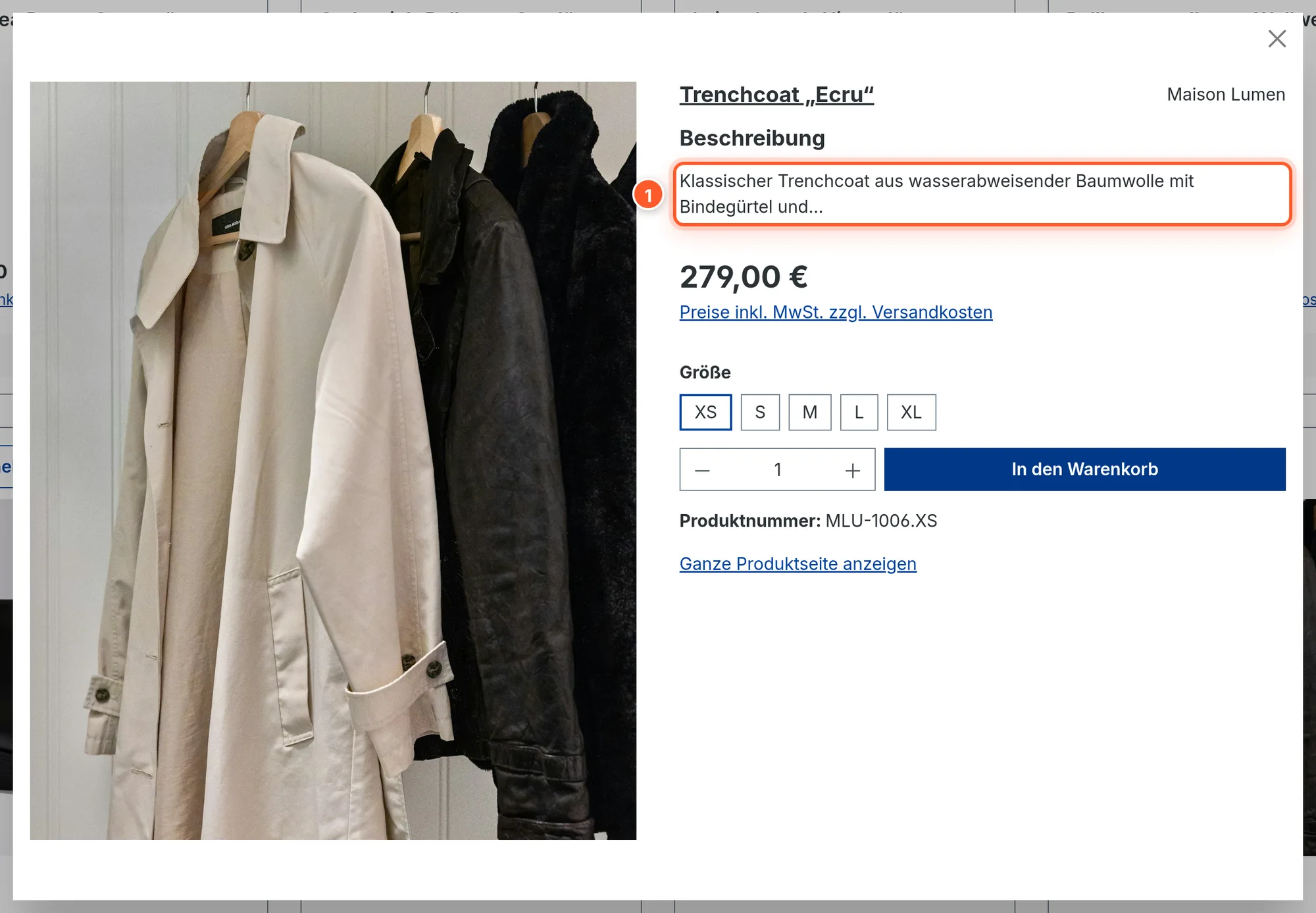
A shortened description is plain text: bold text, lists and links from the description are dropped. With the value 0 the description stays complete and formatted.
Product number and shipping note
Hide product number in quick view modal 3 hides the product number below the buy button. At the same time, the “Prices incl. VAT plus shipping costs” link changes: it opens the shipping and payment information in a small window inside the popup instead of sending the customer to another page.
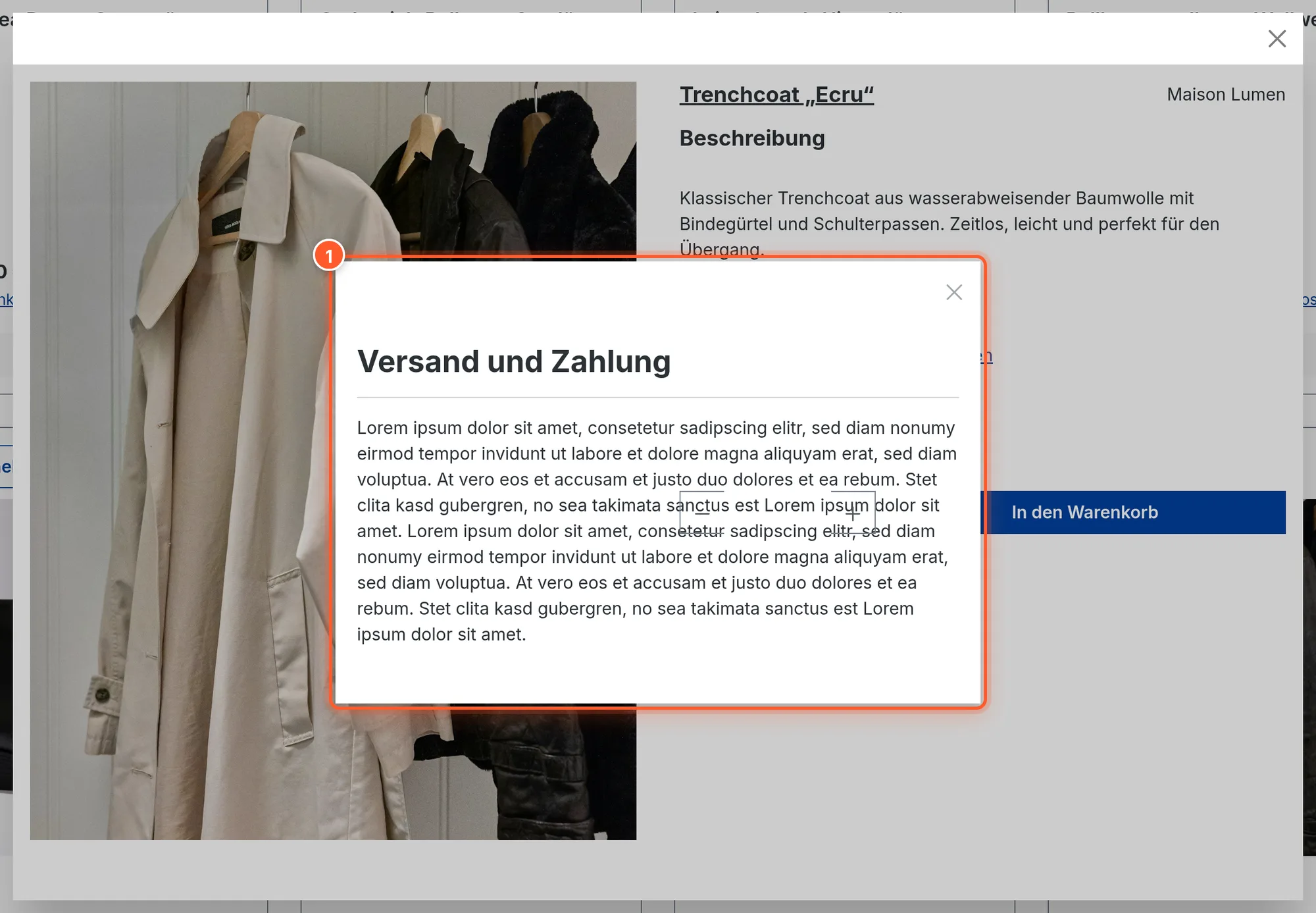
The page shown is the one set as the shipping and payment information page under Settings › Shop › Basic information.
Center the popup vertically
With Vertically center the modal 4 the popup sits in the middle of the browser window instead of at the top. If it’s taller than the window, a small gap remains at the top and bottom and the page scrolls.
Image zoom
Some themes (e.g. ThemeWare) show a magnifier when hovering over the product image and place the enlarged image to the right of it – which, in the popup, means on top of the variant selection. Image zoom (magnifier) in the quick view 5 solves this:
- Standard (as configured by the theme): The popup behaves like your theme.
- Show the zoomed image below the product image: On hover, the enlarged image appears in its own area below the product image and no longer covers anything.
- Disable the zoom in the quick view: No magnifier in the popup. The product page keeps its zoom.
The Shopware default theme has no magnifier in the popup; there the setting has no visible effect. The magnifier is also only available on large screens.
Mobile
On smartphones, the popup uses the full width, and the image and buy area are stacked.
Settings
Quickview Button Settings
| Setting | Effect | Default |
|---|---|---|
| Where should the button be positioned in the product box? | Position of the button in the product box: At the top, Below the product thumbnail, Below the product title, Below the product rating, Below the product description, Below the variant characteristics, Below the product price, At the bottom. Sets the position in the HTML; you can fine-tune it with CSS. | At the top |
| Choose button type? | Button color: Primary, Secondary, Success, Error, Information or Warning color, each normal or “(outline)”, or “None”. | Primary color (outline) |
| Own CSS classes for the button | Additional classes for the button. | empty |
Quickview Modal Settings
| Setting | Effect | Default |
|---|---|---|
| Hide the variant selection in the quick view modal | Hides the variant selection in the popup. | off |
| Length of product description in popup (number of characters) | 0 = full description with formatting; any other number shortens it to that many characters (without formatting). | 0 |
| Hide product number in quick view modal | Hides the product number and opens the shipping cost note inside the popup. | off |
| Vertically center the modal | Popup in the middle instead of at the top of the window. | off |
| Image zoom (magnifier) in the quick view | Standard (as configured by the theme) / Show the zoomed image below the product image / Disable the zoom in the quick view. | Standard |
Snippets
| Key | Text (English) |
|---|---|
flink.quick_view.quickview | Quick View (button text) |
flink.quick_view.showFullButton | Show full details (link in the popup) |
Tips & hidden features
- Style the button precisely with CSS: The button always has the class
flink-quickview-btnplus a class for its position, e.g.flink-quickview-btn__toporflink-quickview-btn__below_price. That lets you hide it only on mobile, for example, or lay it over the product image as an overlay without affecting other buttons. - Button as an icon: Choose button type “None”, enter your own classes and replace the text via the
flink.quick_view.quickviewsnippet, e.g. with “View” or “Peek”. - In sliders too: Product sliders and cross-selling sliders use the same product box as the listing. The button appears there automatically with the same settings.
- Popup width: On tablets and desktops, the popup is up to 1200 px wide, image on the left, buy area on the right.
- Different per sales channel: All settings can be set per sales channel, e.g. a filled button in the B2C shop and a subtle outline button in the B2B shop.
- Size charts: If you use our Size Charts plugin, its link only appears on the product page, not in the popup. Customers get to the chart via “Show full details”.
Frequently asked questions
I don’t see the button. What now?
Clear the cache under Settings › System › Caches & indexes. If your theme uses its own product boxes that don’t extend the Shopware box-standard template, the plugin can’t insert a button there. Try a different position or ask the theme vendor.
The button sits in an awkward spot or overlaps something.
Choose a different position. The setting only determines where the button sits in the HTML; you handle spacing and overlaps with CSS via the flink-quickview-btn class.
How do I change the button text?
Under Settings › Snippets: search for flink.quick_view.quickview and change the text for each language.
Why is the variant selection missing in the popup?
It only appears for products with variants and only when Hide the variant selection in the quick view modal is off.
The magnifier covers the size selection in the popup.
Set Image zoom (magnifier) in the quick view to “Show the zoomed image below the product image” or “Disable the zoom in the quick view” and clear the cache afterwards.
Why does the description in the popup no longer have any formatting?
You’ve entered a length for the product description. Shortened descriptions are plain text. Set the value to 0 to show the formatted description.